

Note 17 · App Store growth
App Store creative assets: one promise, three jobs
A little promise. A closer look.
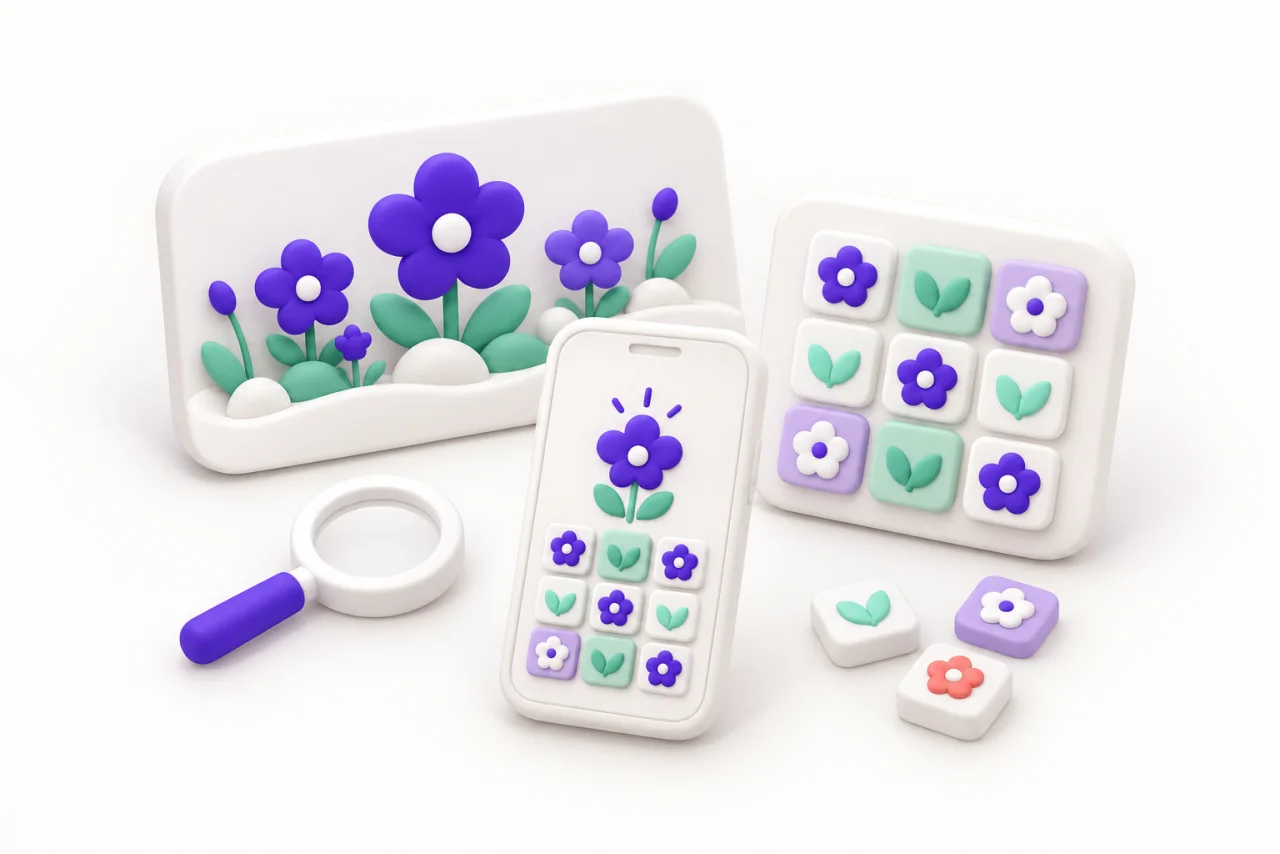
Give each image a job: explain the experience in search, make the outcome inviting in the header, and demonstrate the real product in screenshots. Preview the crops, then test one promise at a time.
Your screenshots have company.
Imagine a cozy puzzle game whose best moment is turning a bare patch of ground into a tiny garden. A screenshot can explain the puzzle. A picture of the finished garden can make someone want to play. Those images answer different questions.
On 5 October 2026, Apple announced new App Store creative assets for product page headers and search results, alongside a preview tool and Asset Library. These image and video placements complement screenshots and app previews. Apple’s current asset guide says creative assets are optional and available on iOS 27 and iPadOS 27 or later.
For a small iOS team, the useful opportunity is to give each surface a clear job. Another slot is only useful if it helps a person understand what they will get.
One promise. Three different jobs.
Apple’s creative guidance recommends a single clear idea for the header and an immediately understandable app experience in search. Its screenshot guidance still expects the majority of screenshots to show the app in use. A new promotional surface does not replace that evidence.
Hypothetical example: our garden puzzle is an invented iOS game, not a Piiko release or an Apple case study. We would try this sequence:
- Search: “I understand the game.” Show a real puzzle move and the flower it produces. Keep the board readable when the image is small.
- Header: “I want that little garden.” Show one inviting garden scene that players can actually create. Give the composition room to breathe.
- Screenshots: “Here is how it works.” Use captured gameplay to show the move, the reward and the growing garden. Let the next screen answer the next question.
The same principle works for a utility app: show the useful result, then demonstrate the real interaction that produces it. If the promise requires several paragraphs to explain, work on the promise before producing more images.
Keep the idea intact when the frame changes.
The current specifications use a 21:9 header image at 3840 × 1646 pixels and a 3:2 search image between 1920 × 1280 and 3840 × 2560. A universal 5244 × 2950 PNG is another option for both placements. Images must not contain transparency. Search-result videos play muted and currently cannot be unmuted.
Our starting choice would be two still images built from the same scene. Put the important action near the center, and inspect each crop separately. A universal file can reduce exports; it cannot decide which part of your story deserves attention.
For the garden game, the search image needs a visible cause and effect. A beautiful field of flowers alone could be mistaken for wallpaper. If you later animate it, the move and bloom should make sense with the sound off. Start with a composition worth animating.
Get the art ready before the campaign.
Asset Library lets teams submit creative assets for review independently of a version or placement assignment, then reuse approved files. For an already live version, Apple documents selecting approved assets under Header and Search Results and publishing them without a new app version. New-version submissions follow their version’s approval and release.
That suggests a calmer seasonal workflow: prepare the artwork while the feature is being finished, keep its promise aligned with the real product, and publish when the experience is ready. Approval of an image is not evidence that a seasonal feature is already available.
Use Apple’s new preview tool to inspect device sizes, orientations and Dark Mode. Check the first impression at a glance, not only at full export size. Keep the existing screenshot story useful for people on older OS versions too.
A pretty preview is the start of a question.
Apple explicitly recommends testing alternative headers with product page optimization; its treatment setup guide includes the Header and Search Results tab. The optimization overview describes randomized treatments and conversion estimates with confidence reporting. A preview checks presentation; it does not tell you which image persuades people.
For our hypothetical game, compare a finished garden with a garden mid-transformation. Change only the header, holding search creative, screenshots and the product offer steady. Write down the audience, supported OS scope, localization, allocation and decision rule before starting. Keep a record of campaign and release changes that might affect the reading.
Use the experiment’s reported conversion definition and uncertainty. Do not declare a winner after an attractive first-day swing, or substitute this week’s total installs for treatment results. With too little traffic, an inconclusive result is useful information: it tells you the experiment cannot settle the question yet.
Finally, inspect whether new users reach the promised garden moment. That is a separate product check. Unless your measurement actually identifies treatment assignment, activation or revenue changes cannot be attributed to a particular header. Our event-planning note helps define the first useful action; the acquisition checklist connects the same promise to a paid campaign.
Sources & further reading
- Apple Developer — New App Store assets announcement, 5 October 2026
- Apple — App Store asset best practices; reviewed 6 October 2026
- App Store Connect — Asset Library, availability and publishing workflow
- App Store Connect — Creative asset specifications
- App Review — Screenshot guidance, guideline 2.3.3
- App Store Connect — Configure product page optimization treatments
- App Store Connect — Product page optimization overview
Examples are hypothetical. They illustrate the method and do not represent Piiko results or industry benchmarks.